Skip to content

Works with Claude and ChatGPT

Ask Claude or ChatGPT about your cleanings.

Connect your Properly account to Claude or ChatGPT and ask about your schedule, bookings and properties in plain language.

  • Read-only
  • Set up in about a minute
  • No code
  • Web, desktop and mobile
Example chat

What cleanings do I have tomorrow?

Properly Read-only

You have 3 cleanings tomorrow:

  • Lake House 11:00–14:00 Maria
  • Oak Street 11:00–13:30 No cleaner yet
  • The Villa 12:00–16:00 Ana

What you can ask

Questions hosts ask every day, answered from your Properly data.

Cleaning jobs

  • What cleanings do I have tomorrow, and who's assigned?
  • Which jobs this week still have no cleaner?
  • Did the cleaner finish every task at the lake house yesterday? Were any problems reported?
  • How many photos were taken at Oak Street compared with what the checklist asks for?

Visible to the assistant

Schedule, status, assigned cleaner, tasks completed, photos taken, problems reported, and how far from the property the cleaner was when starting and finishing. For each problem, the assistant sees how serious it was and which step it concerned, but not what the cleaner wrote about it.
Bookings

  • Who's arriving this weekend, and how many guests?
  • Which properties have a guest staying tonight?

Visible to the assistant

Dates, guest names and number of guests.

Properties

  • How many bedrooms and beds does the villa have?
  • Which properties have three or more bedrooms?

Visible to the assistant

Names, addresses, bedrooms, beds, bathrooms and bed types.

At the Allow step you can untick any of these three, and the assistant then sees only what you left ticked. Answers about cleanings link straight into Properly, so you can open the job itself.

What the assistant can't see or do

  • It can't change anything in Properly.
  • It never sees access codes, lockbox codes, Wi-Fi passwords or property and job notes.
  • It never sees guest photos, cleaner contact details or a cleaner's exact location.
  • It has no access to billing or payments.

Privacy

Nothing is shared with the assistant until you connect. When it answers a question, it reads the relevant data from Properly and processes it under your Claude or ChatGPT account. You can disconnect at any time.

Disconnecting

In Properly, open Settings → API & AI assistants and click Disconnect next to the connection. The assistant loses access immediately. You can also remove the Properly connector in Claude or ChatGPT — either side ends it. Each connection can be given a name in Properly, which helps if you connect more than one assistant.

Setup guide

How to connect Properly to Claude or ChatGPT

It takes about a minute and needs no code.

Properly's server URL

https://platform.getproperly.com/mcp

Connecting is available to the account owner.

Building your own MCP client? Read the developer docs 

Claude

  1. 1

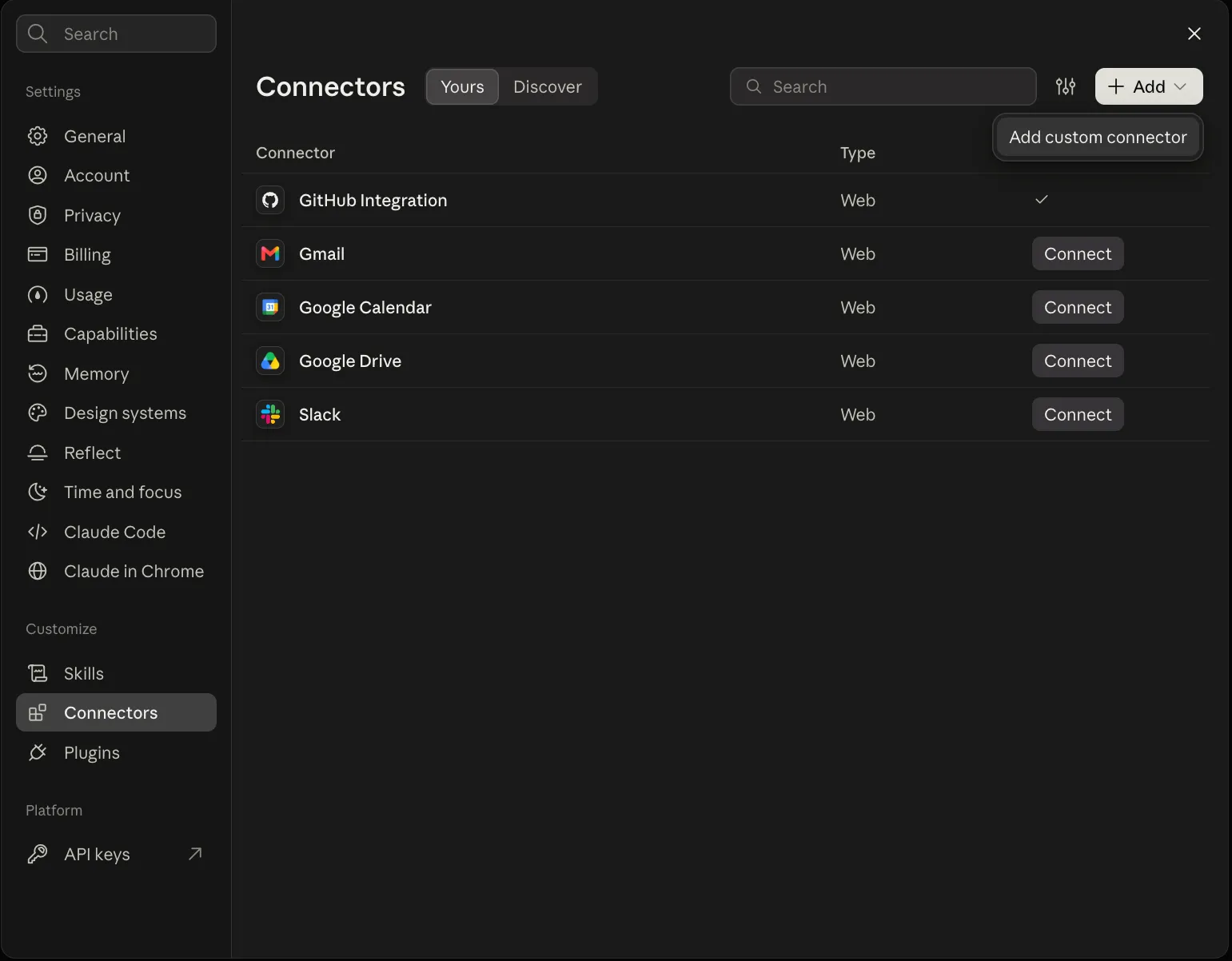
    In Claude, open Customize → Connectors and click Add ▾ → Add custom connector.

    Claude's Connectors settings with the Add menu open on Add custom connector
    Claude — Add custom connector
  2. 2

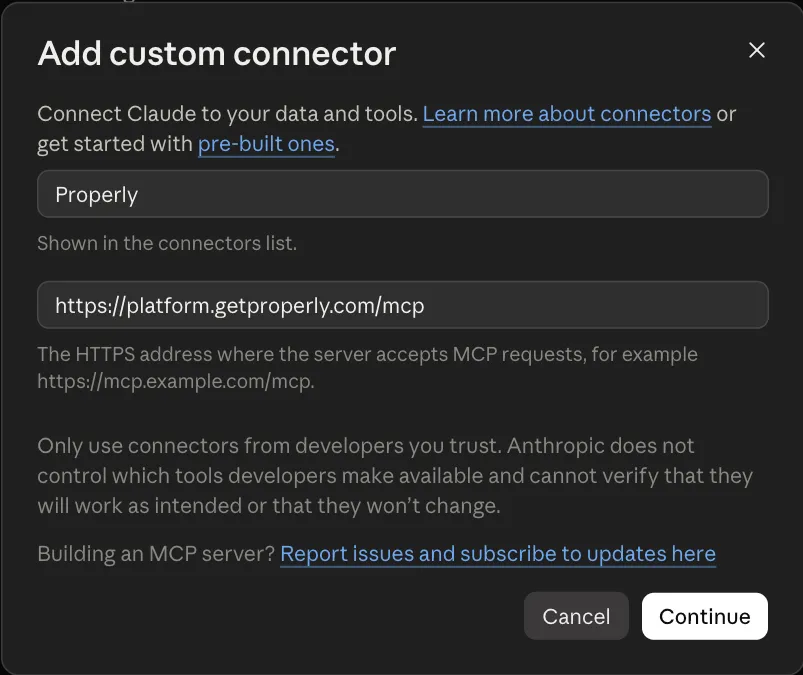
    Name it Properly, paste the URL above into the box below it, and click Continue.

    Claude's Add custom connector dialog with the name Properly and the server URL filled in
    Claude — Name and server URL
  3. 3

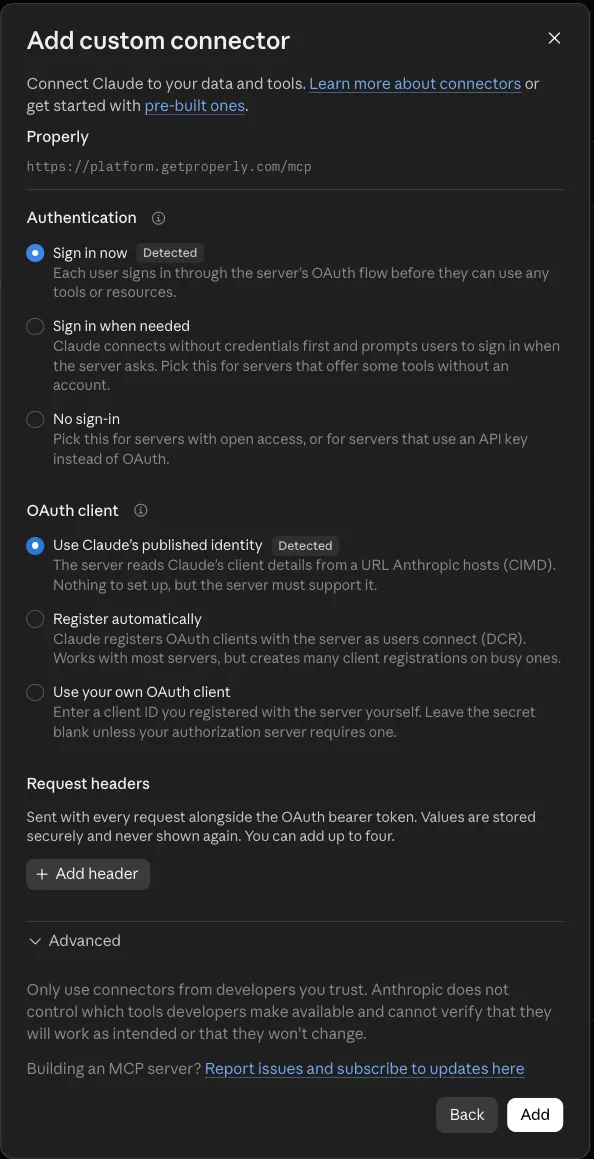
    Leave the detected options as they are (Sign in now and Use Claude's published identity) and click Add.

    Claude's connector options with Sign in now and Use Claude's published identity detected and selected
    Claude — Authentication and OAuth client (detected)
  4. 4

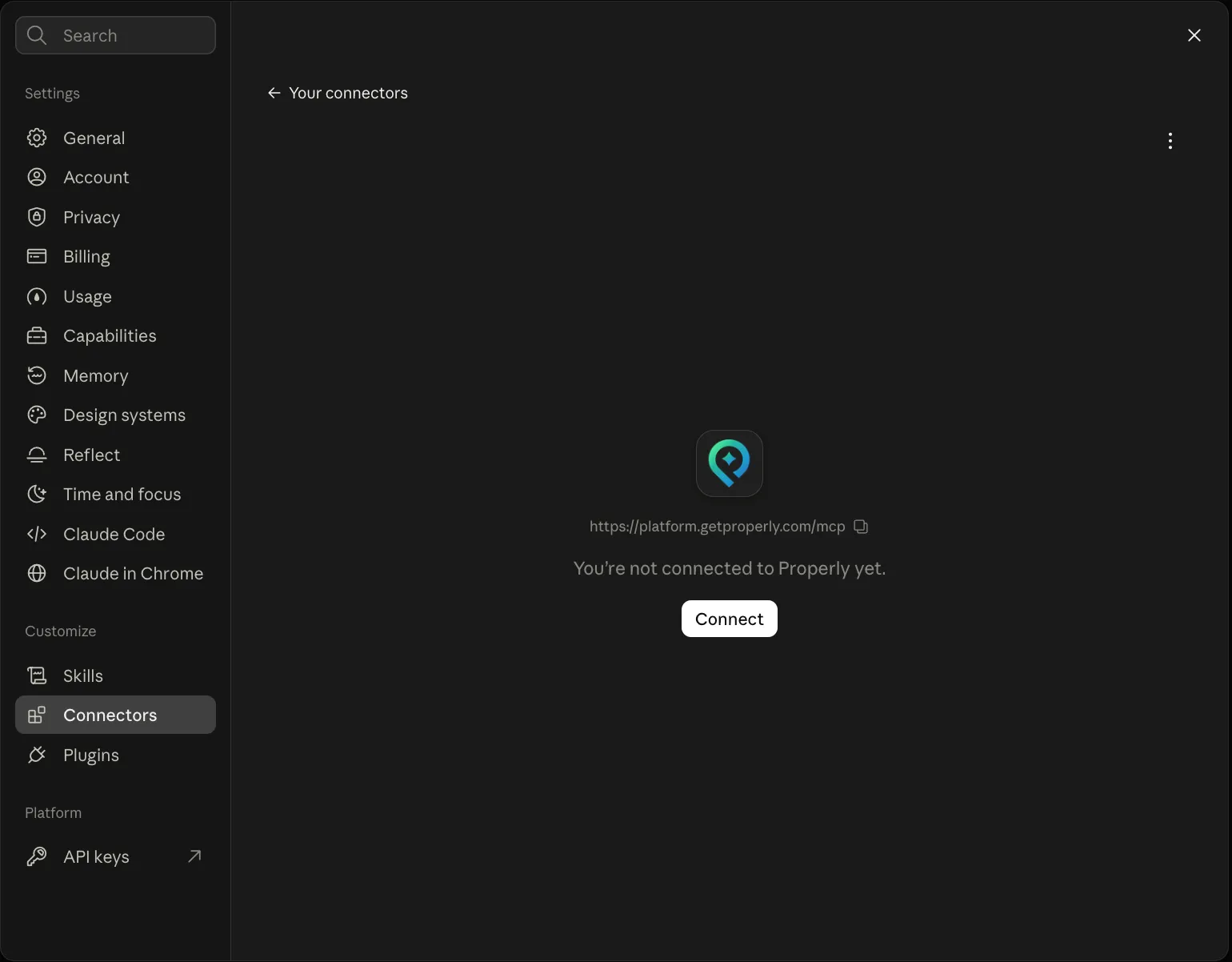
    Click Connect. Your browser opens Properly — sign in if you aren't already.

    The Properly connector in Claude, not connected yet, with its Connect button
    Claude — Connect
  5. 5

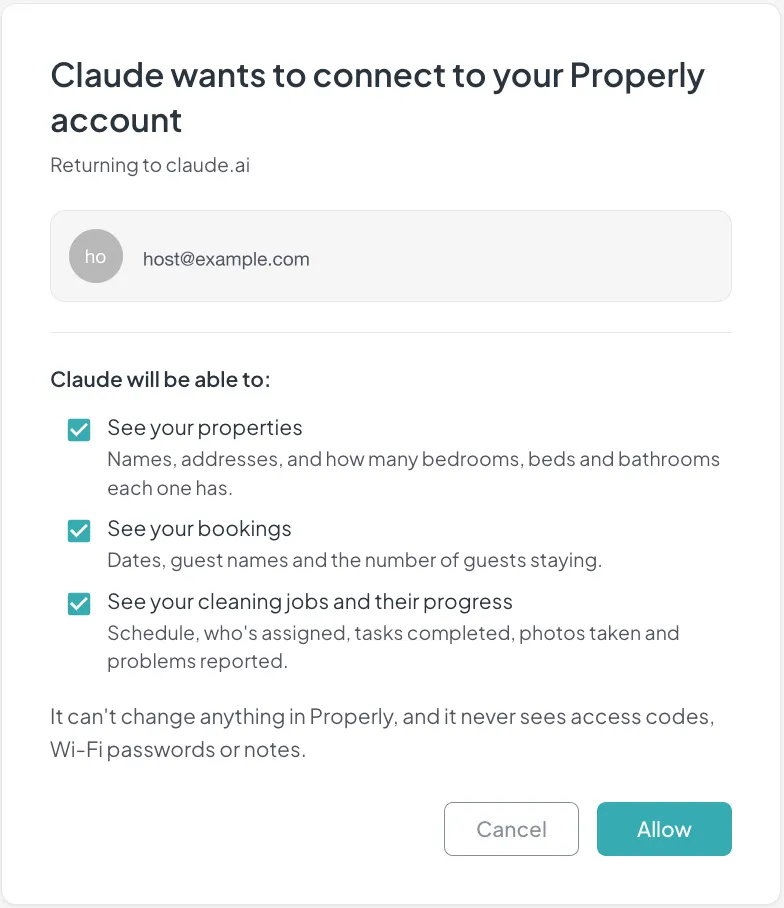
    Check what Claude will be able to see, then click Allow.

    Properly's consent page listing what the assistant will be able to see, with Cancel and Allow buttons
    Properly — Allow (the same screen for every client)
  6. 6

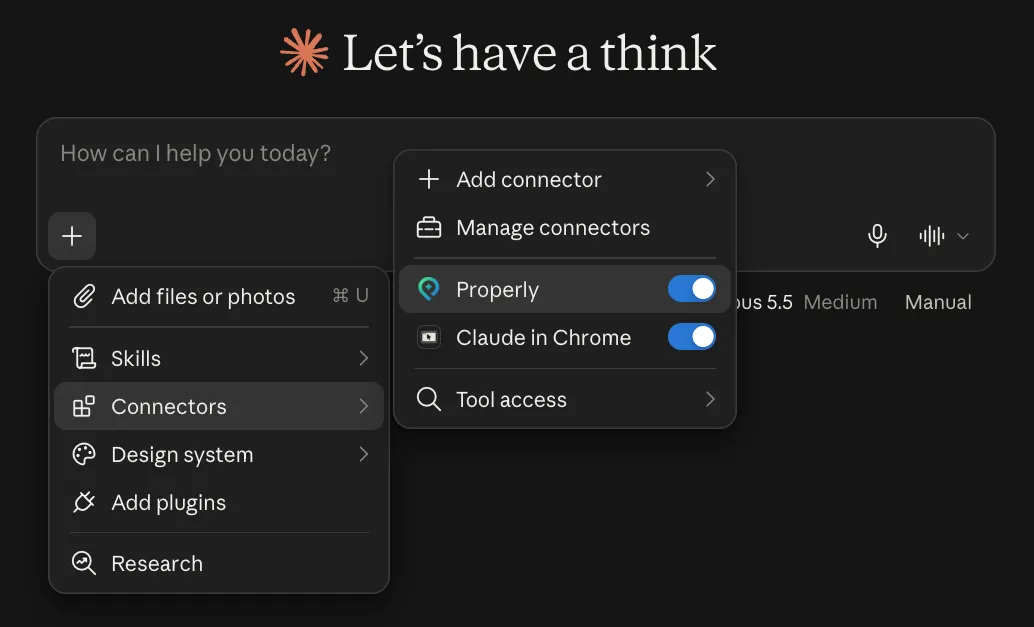
    In a chat, turn on Properly from the + menu → Connectors.

    A Claude chat with the plus menu open on Connectors and Properly switched on
    Claude — Connectors in a chat

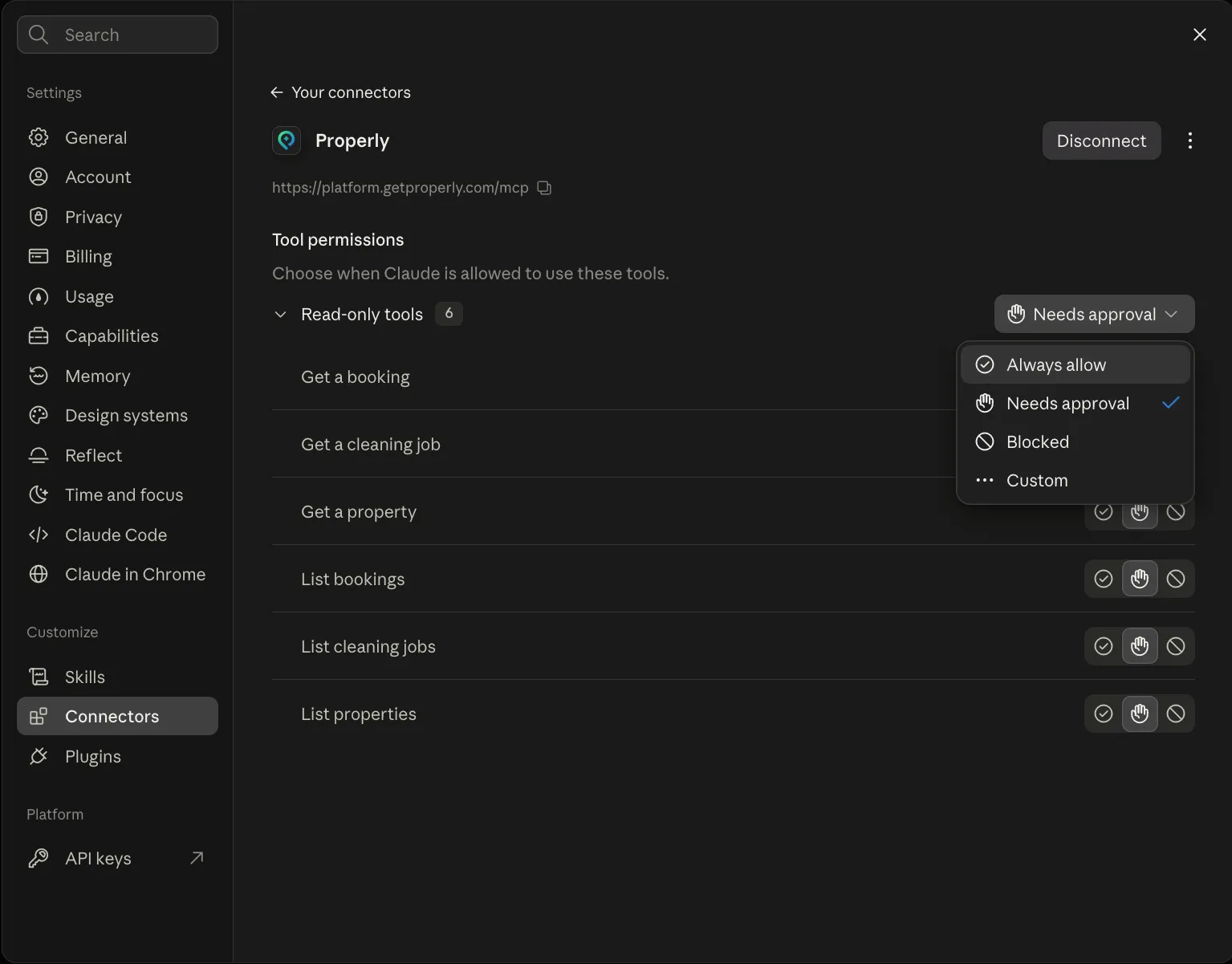
Optional: after Allow, Claude opens Properly's connector page. Set Read-only tools to Always allow, so Claude doesn't ask before each lookup. This is safe because Properly's tools can only read. You can change it later under Customize → Connectors → Properly.

Properly's connector page in Claude with the Read-only tools permission menu open on Always allow
Claude — Always allow read-only tools

ChatGPT

  1. 1

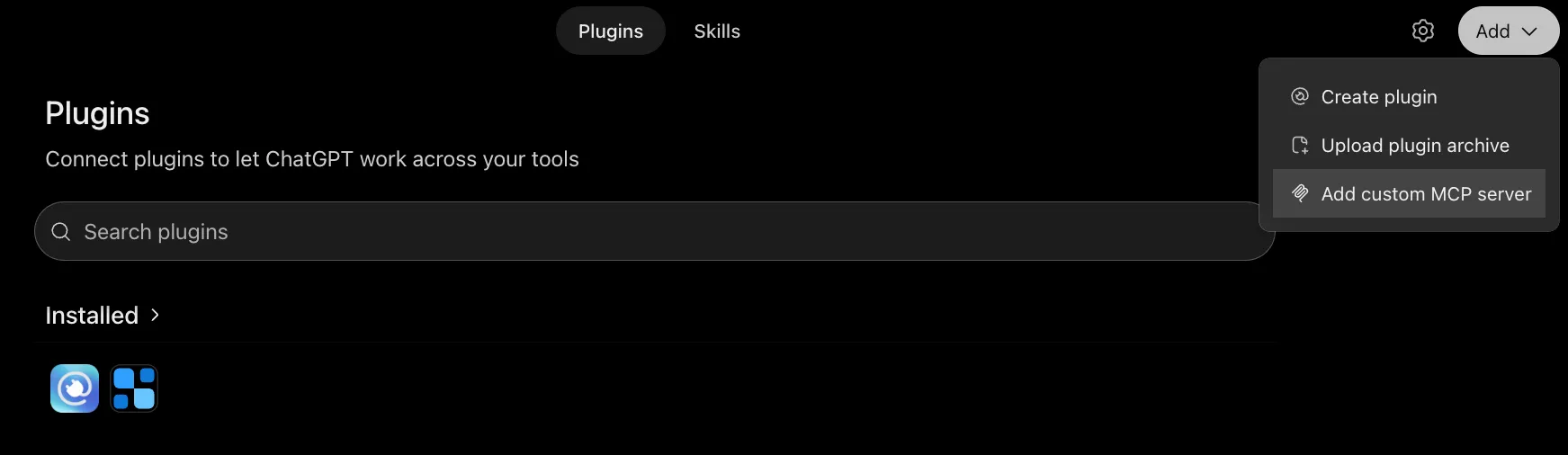
    In ChatGPT, click Plugins in the left sidebar, then Add ▾ → Add custom MCP server at the top right.

    ChatGPT's Plugins page with the Add menu open on Add custom MCP server
    ChatGPT — Add custom MCP server
  2. 2

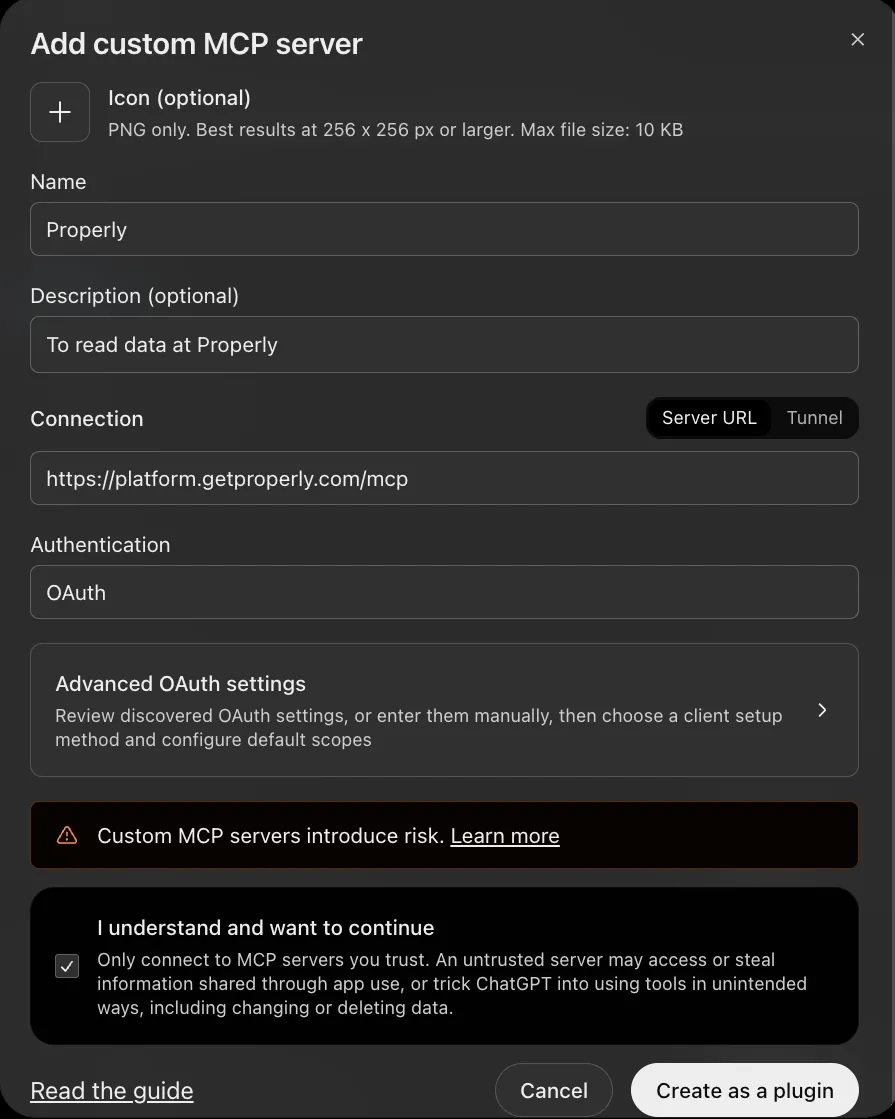
    Enter Properly as the Name, paste the URL above into Connection (leave Server URL selected, not Tunnel), leave Authentication as OAuth, tick "I understand and want to continue", and click Create as a plugin. Icon and Description are optional.

    ChatGPT's Add custom MCP server form filled in for Properly, with the Create as a plugin button
    ChatGPT — Create as a plugin
  3. 3

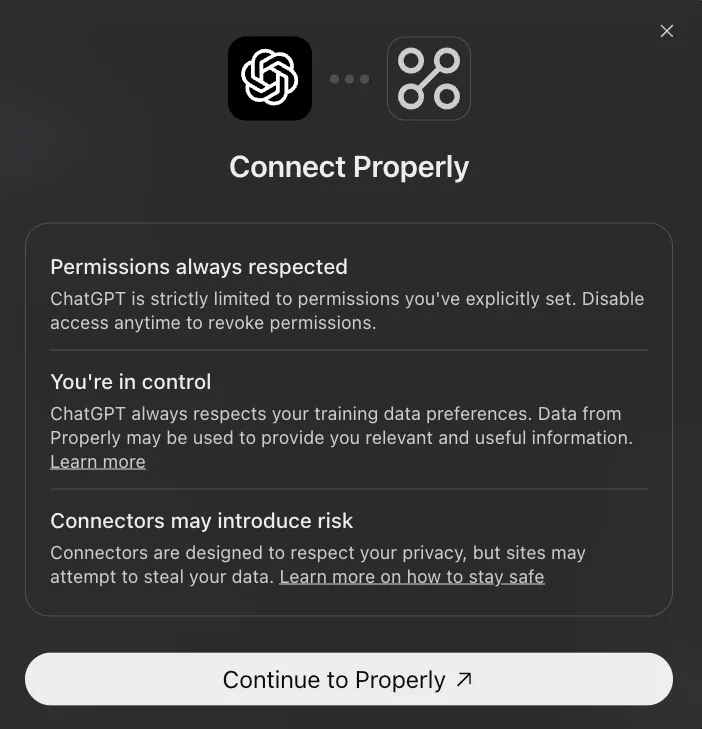
    In the Connect Properly dialog, click Continue to Properly. Properly opens in your browser: sign in if asked, then click Allow. Properly then shows under Installed on the Plugins page.

    ChatGPT's Connect Properly dialog with the Continue to Properly button
    ChatGPT — Connect Properly

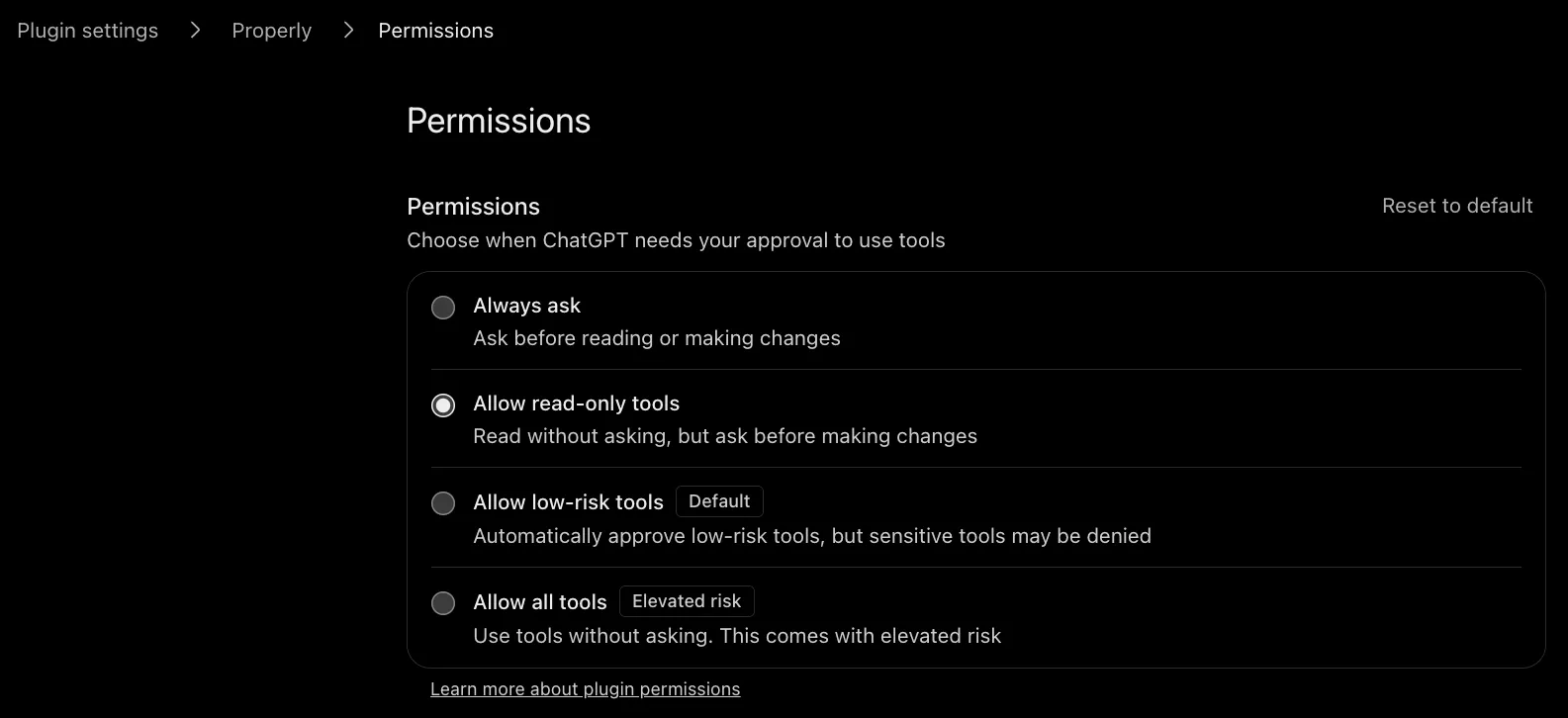
Optional: on Plugins, open Properly under Installed, go to Permissions and choose "Allow read-only tools", so ChatGPT reads without asking each time. This is safe because Properly's tools can only read.

Properly's permissions in ChatGPT with Allow read-only tools selected
ChatGPT — Allow read-only tools

In a chat there is nothing to turn on: ChatGPT picks Properly up by itself.

Questions

Questions about Properly in Claude and ChatGPT

Do I need a paid Claude or ChatGPT plan?

Custom connectors depend on your plan; check Anthropic's or OpenAI's help centre for the current list.

Does it work on my phone?

Yes. Once added, Properly is available in Claude and ChatGPT on the web, desktop and mobile.

Can the assistant make changes in Properly?

No. The connection is read-only.

Can my team use it?

Each person connects with their own Properly login. Today connecting is available to the account owner.

How do I stop it?

Disconnect in Properly under Settings → API & AI assistants, or remove the connector in Claude or ChatGPT. Either one ends access immediately.

Why did it stop working?

A connection ends if it goes unused for a long time or if it was disconnected in Properly. Reconnect from Claude or ChatGPT, following the setup steps again. If the account's subscription expires, the connection stays in place and works again once the subscription is reactivated, with no need to reconnect.

Which Properly plans include it?

It's included with Platform Pro and Real-Time Inspection. On Platform Standard and Advanced you'll see an option to upgrade.

Not on Properly yet?

Start a free trial or book a demo. Claude and ChatGPT access is included with Platform Pro and Real-Time Inspection.